Getting Started·Updated Sep 2026
Getting started with Nia
Create your account and send your first message. It takes about a minute, and the same account works in the CLI and the mobile app.
Create your account
Nia runs in your browser, so there is nothing to install to try it. You sign in with an account you already have. The pictures in this guide are illustrations, so your screen may look slightly different.
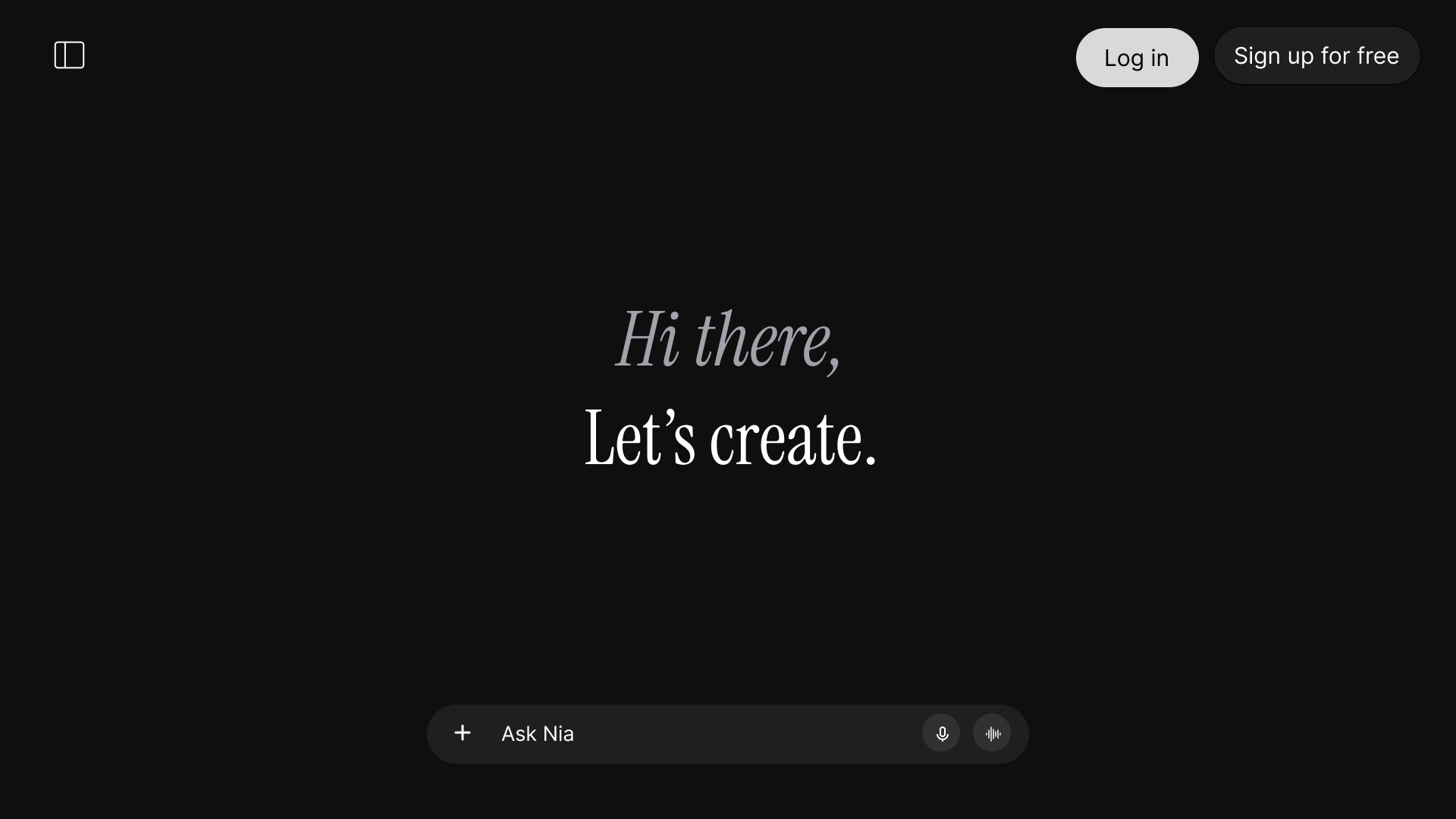
Go to app.niaspark.com. You land on the Nia home screen, with the message box ready at the bottom.
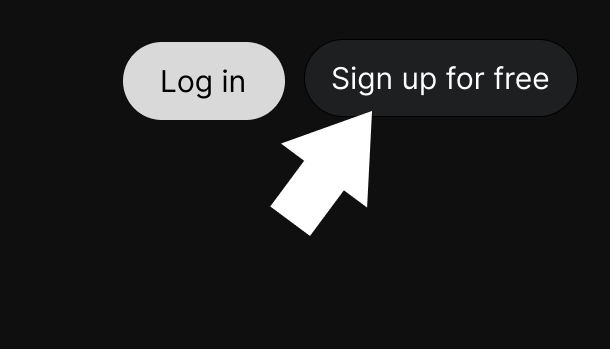
Click Sign up for free in the top-right corner.
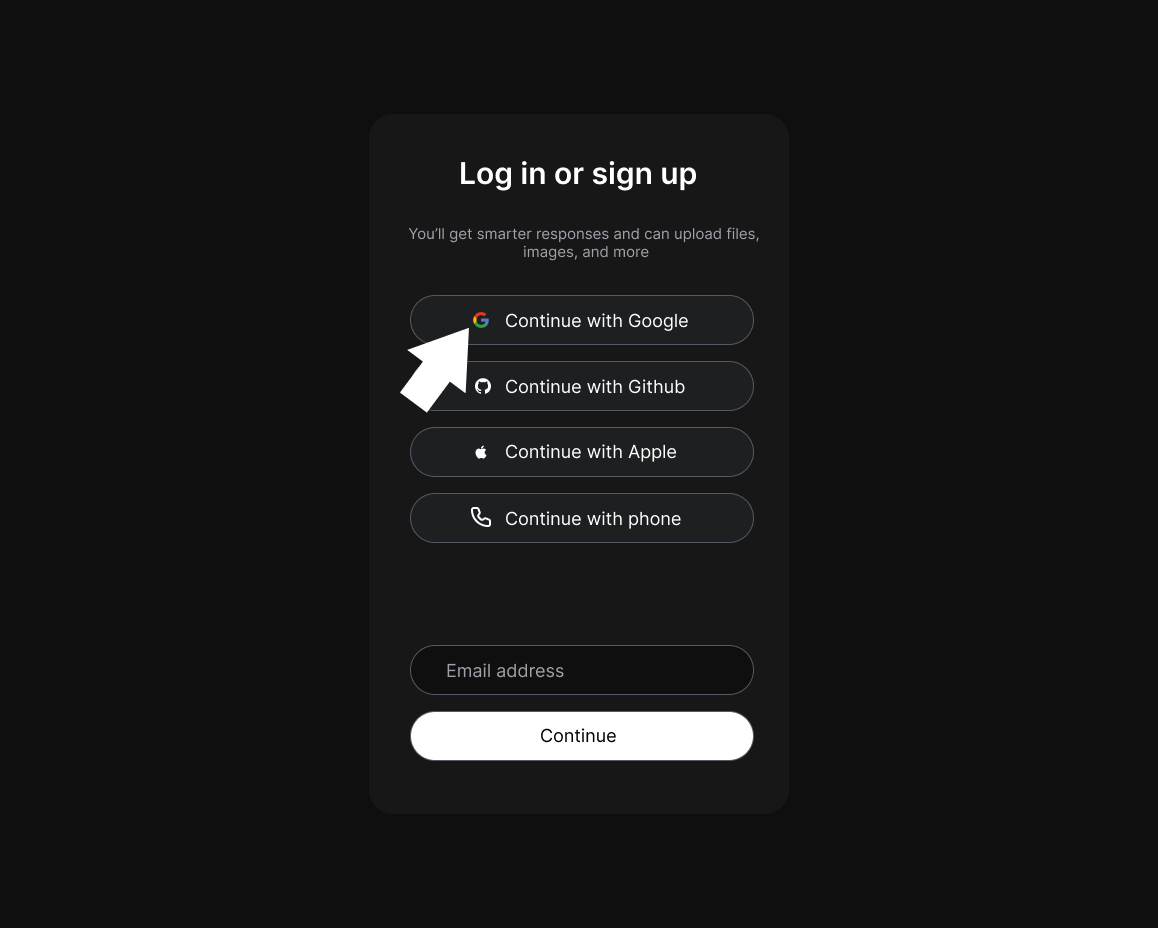
Choose Continue with Google. The same card also lists other ways to sign in.
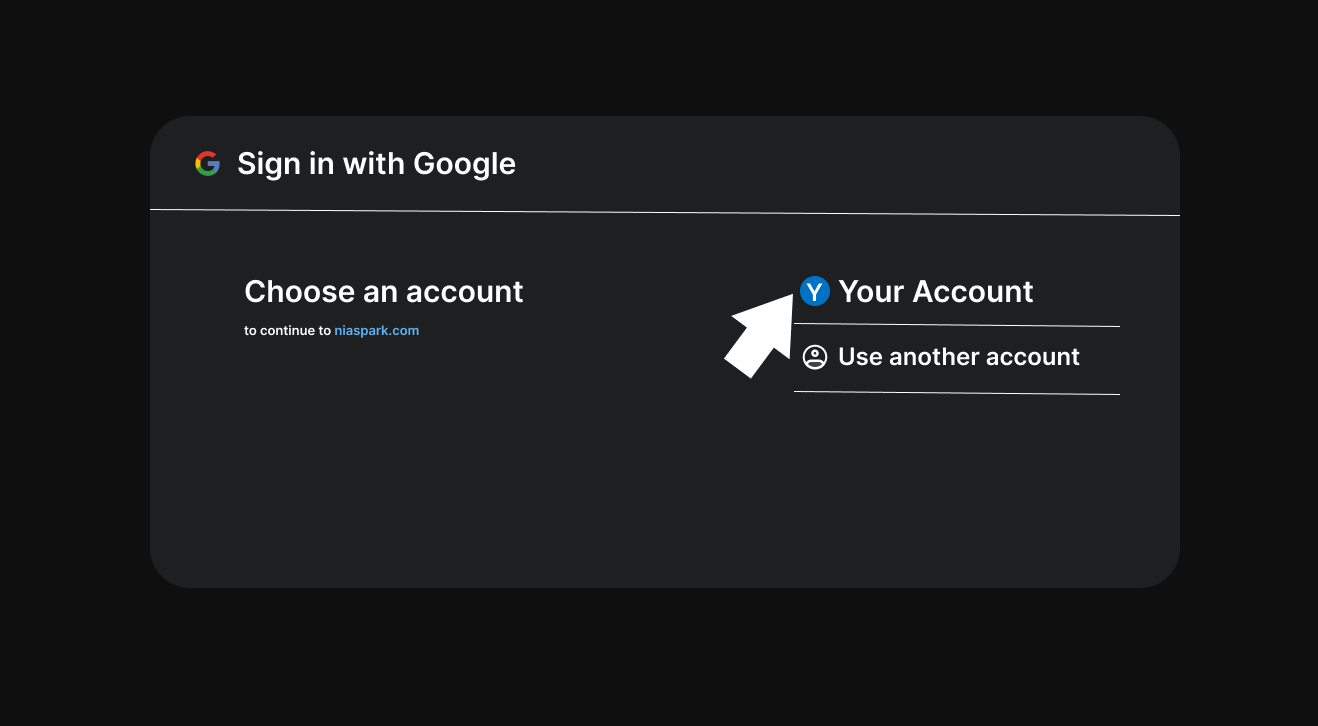
Pick the Google account you want to use, or choose Use another account.
Google asks what niaspark.com can access. Check any service you want to allow Nia to use, or choose Select all, then continue.
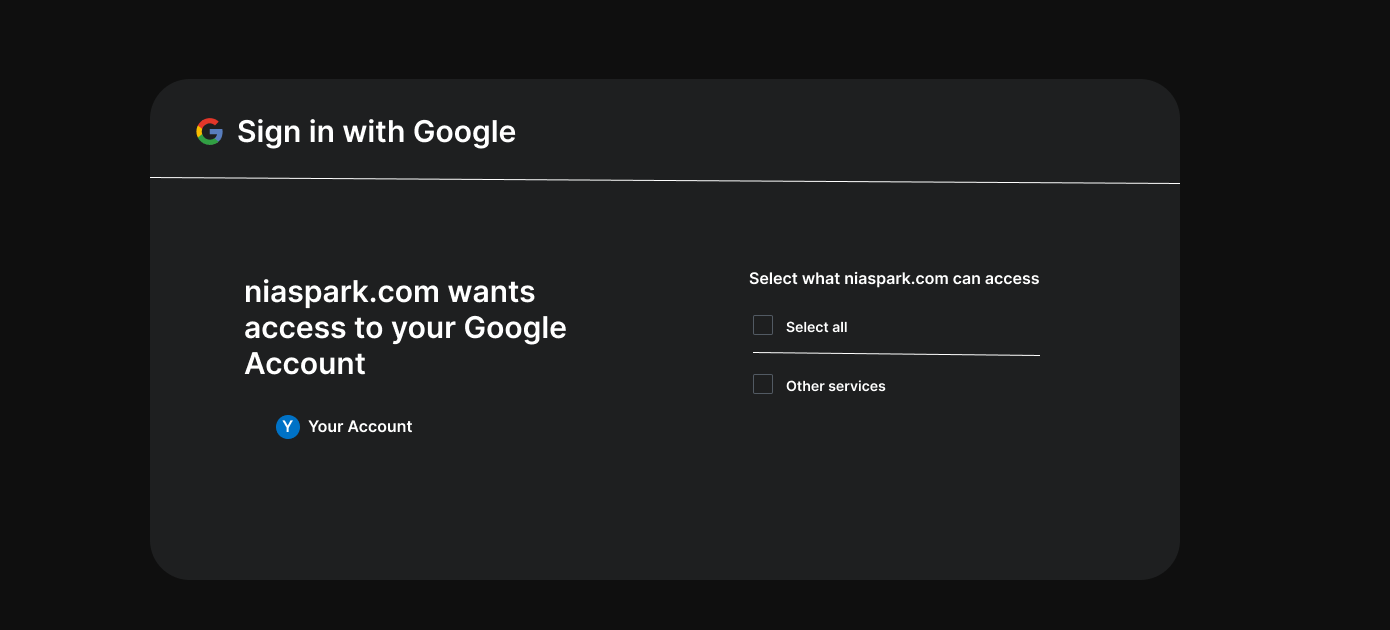
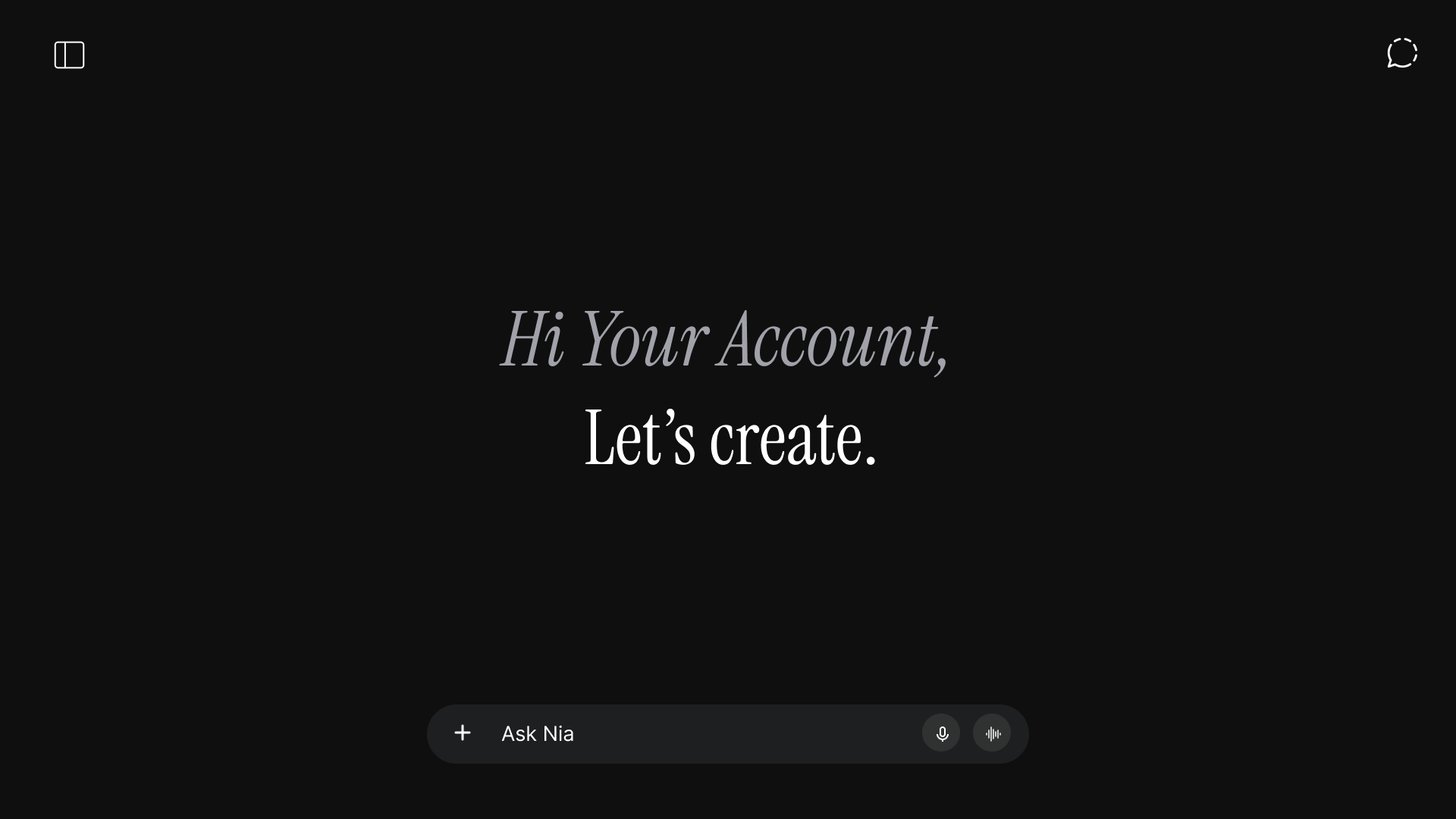
That is it. You are signed in, and the home screen now greets you by name.
Send your first message
Type your message into the Ask Nia box at the bottom of the home screen and press Enter. Ask a question, paste in some text, or tell Nia what you want done.
Prefer your terminal?
The Nia CLI runs the same assistant from the command line. On Debian or Ubuntu Linux, one command installs it:
curl -fsSL https://niaspark.com/installers/install.sh | bashThen run nia from any folder to start. Windows and desktop downloads are on the Nia Code page.